最近一众“全面屏”手机的出现,让之前的项目遇到很多适配问题,由此考虑如何简便而快捷的适配更多新设备的屏幕尺寸。
问题分析
选取iphoneX,iphone 6S,ipad分辨率为例,大体上,会遇到如下问题:
- 以stretch模式定义控件大小,在不同分辨率下,控件会因为屏幕大小的改变而改变比例。
- 以长宽+位置定义控件大小,在不同分辨率下,控件常常相互重叠或者超出屏幕。
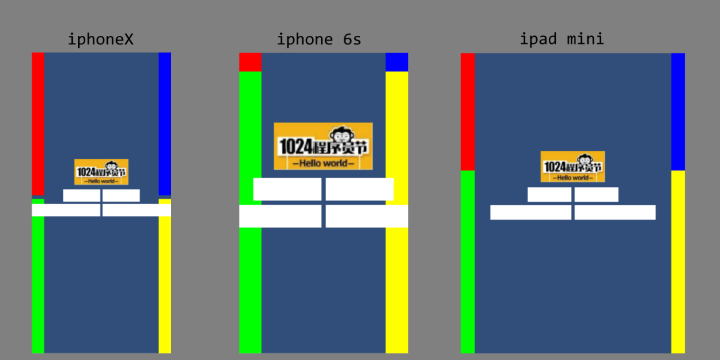
- 以Anchors+stretch定义控件大小,控件比例正确,但往往长宽改变造成显示内容改变。
解题思路
分析上述问题,实际上,所有UI的适配问题,最终可以归结为两类:
- 每个组件长宽和位置均保持设计原稿大小,屏幕变化后,无法完整显示所有组件。
- 每个组件长宽和位置均使用屏幕比例表示,屏幕变化后,可以完整显示所有组件,但组件大小和内容比例全部失真。
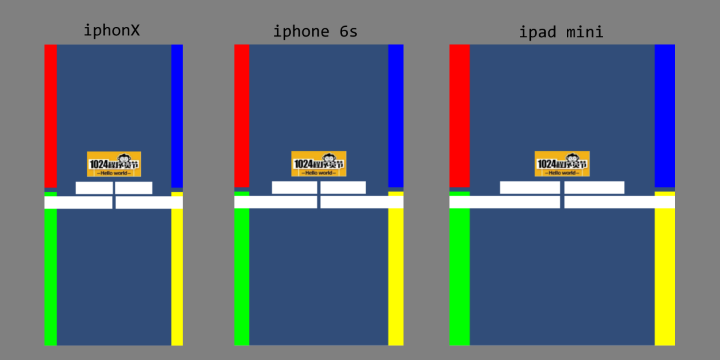
根据以上问题,合理的屏幕适配效果应该是,每个组件能够完全显示在新的分辨率下,且位置布局保持原本比例,允许一定的长宽位置变化。
做到这点,首先我们需要能够快速更改整个UI布局,因而第一步,需要能够将原始UI转化为数据,然后用数据,在新的分辨率下重新生成UI布局。一般的,每一个UI组件,都包含一个RectTransform控件,因而使用以下代码,可以方便的将一个UI的Anchors布局数据化。这里数据以XML的形式保存方便阅读。
    private void Bake(RectTransform node)
    {
        if (node.childCount < 1)
            throw new System.Exception("No GUI in this node of hierarchy.");

        var doc = new XmlDocument();
        var declaration = doc.CreateXmlDeclaration("1.0", "UTF-8", null);
        doc.AppendChild(declaration);

        var root = doc.CreateElement("Root");
        Bake(doc, root, node);
        doc.AppendChild(root);

        var path = System.IO.Path.Combine(Application.streamingAssetsPath, "gui");
        path = System.IO.Path.Combine(path, "main.xml");
        doc.Save(path);
        AssetDatabase.Refresh();
    }

    private void Bake(XmlDocument doc, XmlElement elem, RectTransform node)
    {
        for (var i = 0; i < node.childCount; ++i)
        {
            // 把递归移动到堆上免得炸了
            var action = new System.Action<XmlDocument, XmlElement, RectTransform>(Bake);
            var e = doc.CreateElement("Node");
            elem.AppendChild(e);
            action(doc, e, node.GetChild(i).GetComponent<RectTransform>());
        }
        var x = doc.CreateAttribute("x");
        x.Value = node.anchoredPosition.x.ToString();
        elem.Attributes.Append(x);
        var y = doc.CreateAttribute("y");
        y.Value = node.anchoredPosition.y.ToString();
        elem.Attributes.Append(y);
        var w = doc.CreateAttribute("width");
        w.Value = node.rect.width.ToString();
        elem.Attributes.Append(w);
        var h = doc.CreateAttribute("height");
        h.Value = node.rect.height.ToString();
        elem.Attributes.Append(h);
        var min = doc.CreateAttribute("anchor-min");
        min.Value = node.anchorMin.ToString();
        elem.Attributes.Append(min);
        var max = doc.CreateAttribute("anchor-max");
        max.Value = node.anchorMax.ToString();
        elem.Attributes.Append(max);
    }
保存的数据结果类似这样。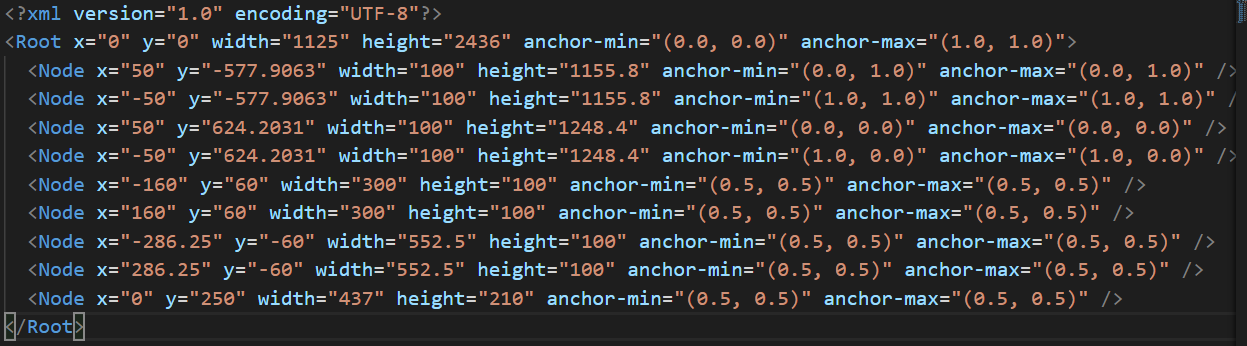
这里我只保存了变换和位置数据。然后使用以下代码,可以简单的对拥有相同分支结构和节点数量的UIGI进行位置重排。
    private void Reset(RectTransform rootNode)
    {
        XmlDocument doc = new XmlDocument();
        doc.LoadXml(data.text);

        var root = doc["Root"];
        Reset(rootNode, root);
    }

    private void Reset(RectTransform node, XmlNode data)
    {
        for (int i = 0; i < data.ChildNodes.Count; ++i)
        {
            var ndata = data.ChildNodes[i];
            var n = node.GetChild(i) as RectTransform;
            SetNodeData(n, ndata);
            var action = new System.Action'<'recttransform, xmlnode'="">'(Reset);
            action(n, ndata);
        }
    }

    private RectTransform GenNode(RectTransform parent, XmlNode data)
    {
        var node = new GameObject("Node", typeof(RectTransform));
        var t = node.GetComponent<RectTransform>();
        t.SetParent(parent);
        SetNodeData(t, data);
        return t;
    }

    private void SetNodeData(RectTransform node, XmlNode data)
    {
        var x = float.Parse(data.Attributes["x"].Value);
        var y = float.Parse(data.Attributes["y"].Value);
        var w = float.Parse(data.Attributes["width"].Value);
        var h = float.Parse(data.Attributes["height"].Value);
        var min = StringToVector2(data.Attributes["anchor-min"].Value);
        var max = StringToVector2(data.Attributes["anchor-max"].Value);

        node.SetSizeWithCurrentAnchors(RectTransform.Axis.Horizontal, w);
        node.SetSizeWithCurrentAnchors(RectTransform.Axis.Vertical, h);
        node.anchoredPosition = new Vector2(x, y);
        node.anchorMin = min;
        node.anchorMax = max;
    }

    private Vector2 StringToVector2(string str)
    {
        var strs = str.Replace("(", "").Replace(")", "").Split(',');
        return new Vector2(
            float.Parse(strs[0]),
            float.Parse(strs[1]));
    }
当GUI布局能够数据化后,回顾问题分析中关于各种问题的描述,从直观数学上看,anchors+stretch布局从数值上最正确。然而当屏幕改变后,由于长宽比也发生改变,往往按照比例布局,最终得到的结果很容易造成图像的比例失衡,类似于原本的正方形变成了长方形的问题就变得很普遍。
为了解决这个问题,需要为控件大小引入一个最佳比例的概念。比如100:100的控件,在任何分辨率下,只有1:1的比例,可以得最佳视觉效果,因而按照一边计算在新UI中的长度或宽度,再用比例得到另外一边,就可以使UI控件在更多分辨率下呈现良好效果。
这里需要注意的是,Unity中,总是以Screen.Height来计算RectTrasnform,因而这里用到的计算方式,也采取这一办法,先按两个显示器比例计算控件高度,再用高度以最佳比例得到宽度,然后再用保存的anchor点对控件位置进行重排。
稍微改动UI重排列的代码,可以使用一套数据,快速适应更多分辨率,具体如下:
    private void SetNodeData(RectTransform node, XmlNode data)
    {
        // 读取原始数据
        var x = float.Parse(data.Attributes["x"].Value);
        var y = float.Parse(data.Attributes["y"].Value);
        var w = float.Parse(data.Attributes["width"].Value);
        var h = float.Parse(data.Attributes["height"].Value);
        var anchor_min = StringToVector2(data.Attributes["anchor-min"].Value);
        var anchor_max = StringToVector2(data.Attributes["anchor-min"].Value);

        // stretch模式,按比例适配控件
        var X = x / rootSize.x * Width;
        var Y = y / rootSize.y * Height;
        var W = w / rootSize.x * Width;
        var H = h / rootSize.y * Height;
        var origin = new Rect(X, Y, W, H);

        // 先恢复anchors
        node.anchorMin = anchor_min;
        node.anchorMax = anchor_max;
        node.ForceUpdateRectTransforms();

        // 把UI约束在屏幕内
        W = w / h * H;
        var current = new Rect(X, Y, W, H);

        var align = PickSortingPoint(node);
        var pos = CalculateAnchorPos(align, origin, current);

        node.SetSizeWithCurrentAnchors(RectTransform.Axis.Horizontal, W);
        node.SetSizeWithCurrentAnchors(RectTransform.Axis.Vertical, H);
        node.anchoredPosition = pos;
    }

    private Vector2 CalculateAnchorPos(UGUIGenAlignment align, Rect o, Rect c)
    {
        var result = new Vector2(c.x, c.y);

        switch (align)
        {
            case UGUIGenAlignment.RightTop:
            {
                result.x += (o.width - c.width) * 0.5f;
                result.y += (o.height - c.height) * 0.5f;
                break;
            }
            case UGUIGenAlignment.RightMid:
            {
                result.x += (o.width - c.width) * 0.5f;
                if (result.y > 0)
                    result.y -= (o.height - c.height) * 0.5f;
                if (result.y < 0)
                    result.y += (o.height - c.height) * 0.5f;
                break;
            }
            case UGUIGenAlignment.RightBottom:
            {
                result.x += (o.width - c.width) * 0.5f;
                result.y -= (o.height - c.height) * 0.5f;
                break;
            }
            case UGUIGenAlignment.MidTop:
            {
                if (result.x < 0)
                    result.x += (o.width - c.width) * 0.5f;
                if (result.x > 0)
                    result.x -= (o.width - c.width) * 0.5f;
                result.y += (o.height - c.height) * 0.5f;
                break;
            }
            case UGUIGenAlignment.Center:
            {
                if (result.x < 0)
                    result.x += (o.width - c.width) * 0.5f;
                if (result.x > 0)
                    result.x -= (o.width - c.width) * 0.5f;
                if (result.y > 0)
                    result.y -= (o.height - c.height) * 0.5f;
                if (result.y < 0)
                    result.y += (o.height - c.height) * 0.5f;
                break;
            }
            case UGUIGenAlignment.MidBottom:
            {
                if (result.x < 0)
                    result.x += (o.width - c.width) * 0.5f;
                if (result.x > 0)
                    result.x -= (o.width - c.width) * 0.5f;
                result.y -= (o.height - c.height) * 0.5f;
                break;
            }
            case UGUIGenAlignment.LeftTop:
            {
                result.x -= (o.width - c.width) * 0.5f;
                result.y += (o.height - c.height) * 0.5f;
                break;
            }
            case UGUIGenAlignment.LeftMid:
            {
                result.x -= (o.width - c.width) * 0.5f;
                if (result.y > 0)
                    result.y -= (o.height - c.height) * 0.5f;
                if (result.y < 0)
                    result.y += (o.height - c.height) * 0.5f;
                break;
            }
            case UGUIGenAlignment.LeftBottom:
            {
                result.x -= (o.width - c.width) * 0.5f;
                result.y -= (o.height - c.height) * 0.5f;
                break;
            }
        }
        return result;
    }
重排的效果大体如下图: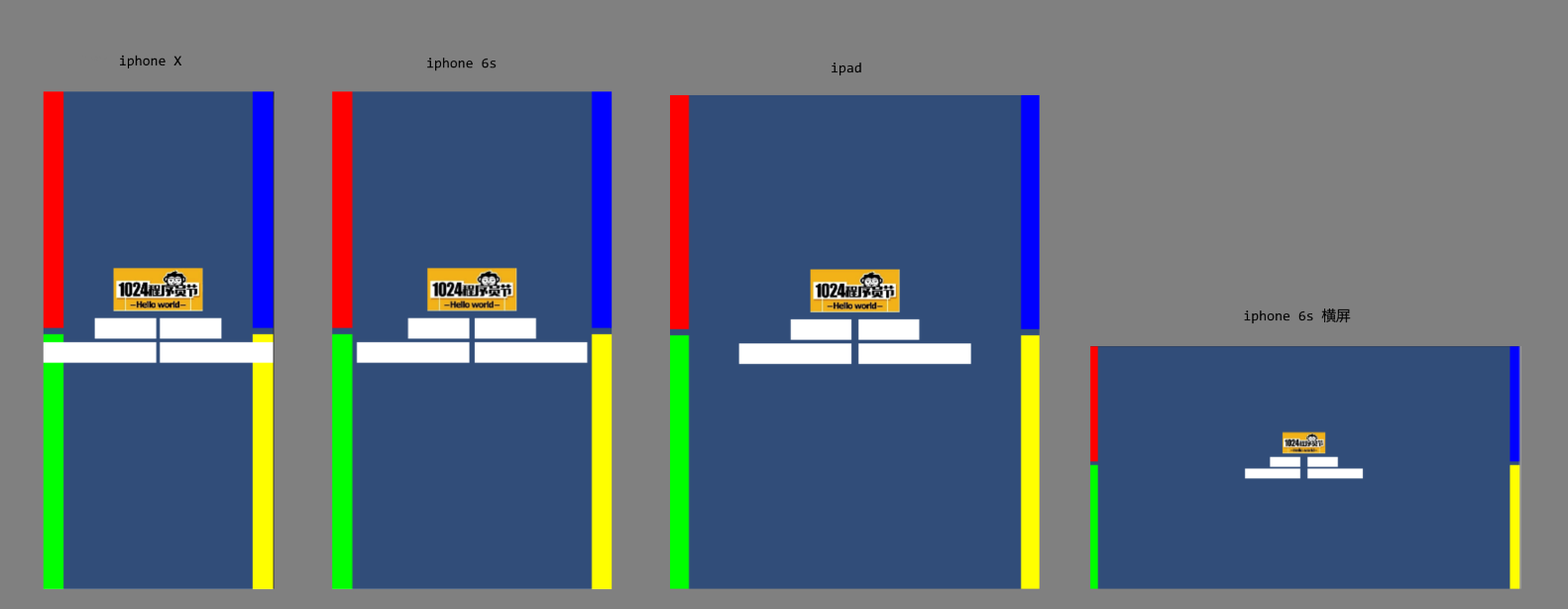
完整的项目链接可以点击这里查看下载。